How To: Snap on Arch

“Snaps are app packages for desktop, cloud and IoT that are easy to install, secure, cross‐platform and dependency‐free. Snaps are discoverable and installable from the Snap Store, the app store for Linux with an audience of millions.” snapcraft.io
Prerequisites
Give the snap entry on the Arch Linux wiki a read. Below are some environment variables for export or you can add them to your .zshrc or .zshenv files.
XDG USER DIRS:
1
2
export XDG_CACHE_HOME=$HOME/.cache
export XDG_DATA_HOME=$HOME/.local/share
Go:
1
2
export GOPATH=$XDG_DATA_HOME/go
export GOMODCACHE=$XDG_CACHE_HOME/go/mod
Installation
Using AUR: Your AUR helper of choice, below we will be using yay. The snapd package is maintained by [bboozzoo].
1
yay install snap
Build That S#!hit (BTS)
The guys a Snapcraft have instructions on installing the snap daemon on Arch Linux that you can have a look at. Give the Arch Wiki a read if you like for the prerequisites but I have also outlined the packages required below.
Build dependencies:
1
2
sudo pacman -S base-devel
sudo pacman -S squashfs-tools autoconf-archive go go-tools python-docutils
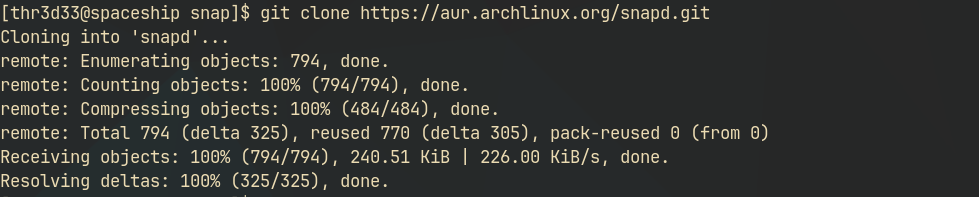
This is a manual install of the AUR package. First we clone the repository then we will cd into the working directory (snapd) and makepkg to build our version of snapd .
1
2
3
git clone https://aur.archlinux.org/snapd.git
cd snapd
makepkg -si
We need to enable the snapd.socket using systemctl.
1
sudo systemctl enable --now snapd.socket
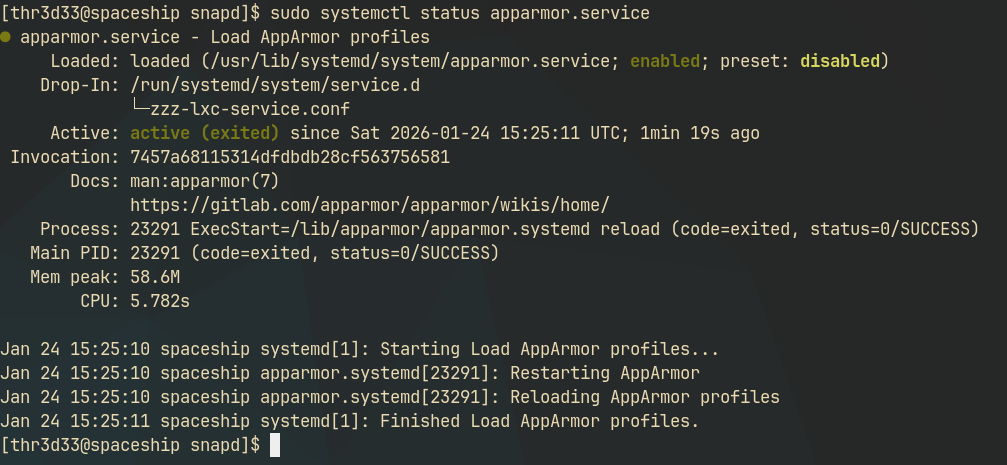
Snap confinement and application sandboxing is available, it can be enabled by making sure you have AppArmor installed.
We can check to see if he status apparmor to verify if its installed and enabled.
1
systemctl status apparmor.service
Below we enable apparmor for the snapd daemon.
1
sudo systemctl enable --now snapd.apparmor.service
For classic snap support, we will need to create a symbolic link between /var/lib/snapd/snap and /snap.
1
sudo ln -s /var/lib/snapd/snap /snap
Log out and back in again, or restart your system
1
reboot
Once you have booted back up we can test if everything is working by installing a snap package. If you already have something you want to install, give it a go, or you can have a look at the Snap Store, otherwise you can install the hello-world package to test your configuration is working.
1
sudo snap install hello-world
Now you can run hello-world
1
hello-world
We can use the same hello-world package to test confinement, by running:
1
hello-world.evil

References:
- https://wiki.archlinux.org/title/Snap - Arch Wiki entry for Snap
- https://snapcraft.io/ - Homepage for Snapcraft